
Sync publish
Sync publish in LmBox Bridge (sidebar , route syncPublish) is a desktop lab tool: write a video / article / post on this computer, then use the companion Chrome / Edge browser extension to fill the same draft into create pages on sites such as Bilibili, Douyin, Xiaohongshu, and Weixin Channels. The extension opens pages and fills forms; it does not click Publish for you.
Video tutorial
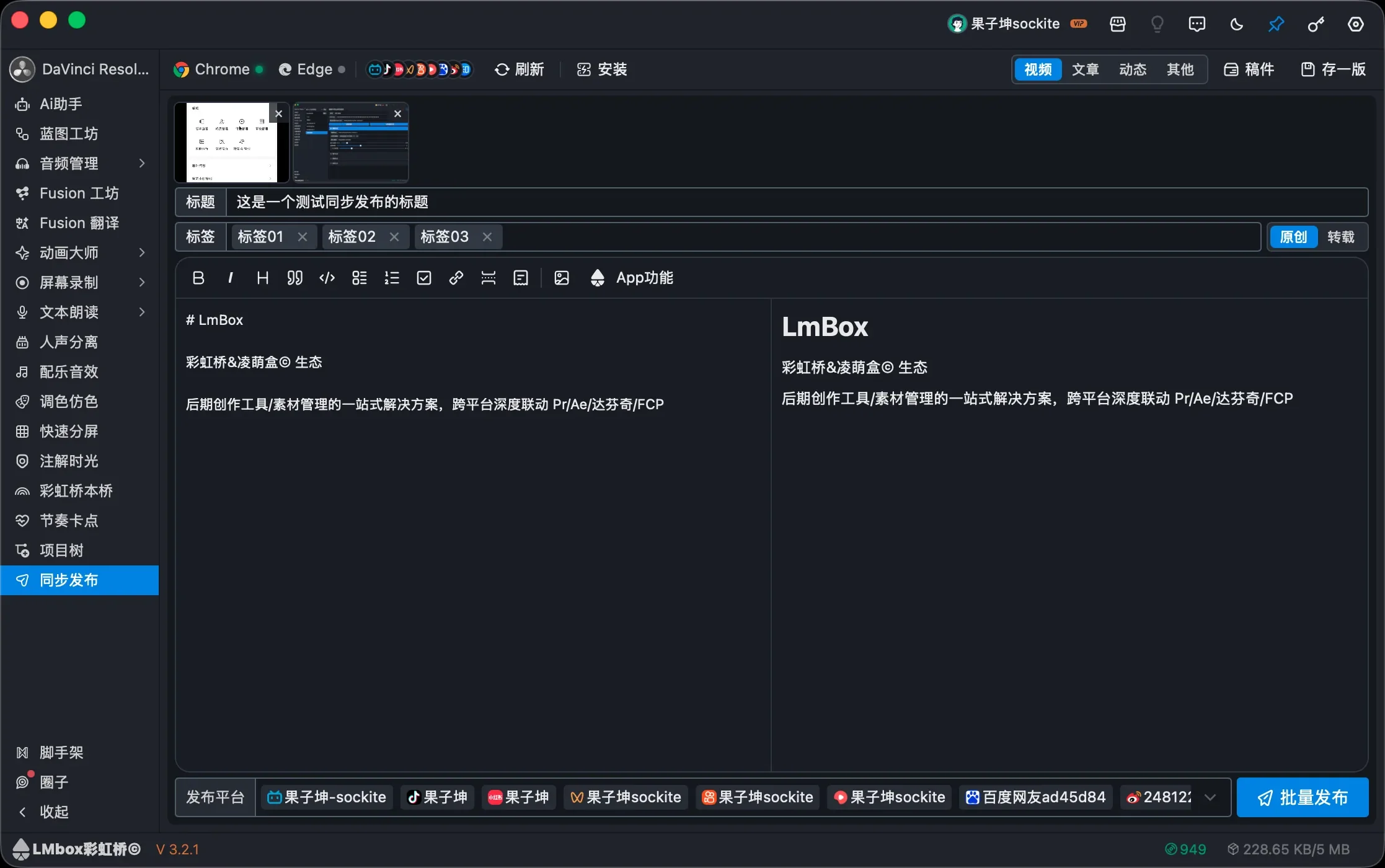
You will learn
- Load the companion extension in Chrome or Edge with developer mode
- Read the toolbar handshake light so you know the desktop app is connected
- Sign in on each site in the extension Accounts tab
- Queue a draft with Publish all, then sync site by site in the extension
- Check progress under Jobs / History
Guide
This page is the main lab guide for the desktop app. Use Install on the toolbar to open the browser extensions page and the extension folder. Do not drag a source src/ folder into the browser.
Install the companion extension
Sync publish needs the LmBox Bridge browser extension in Chrome or Edge. After it loads, the status light next to that browser on the toolbar changes from off to live.
Extensions page addresses
You need each browser’s own extensions page. Try the links below; if the docs site blocks them, paste the address into that browser’s address bar and press Enter:
1. Open this page
- Open the LmBox Bridge desktop app
- In the sidebar, open
- On the left of the toolbar, Chrome / Edge each show a status light (off / live / interrupted)
2. Use toolbar Install
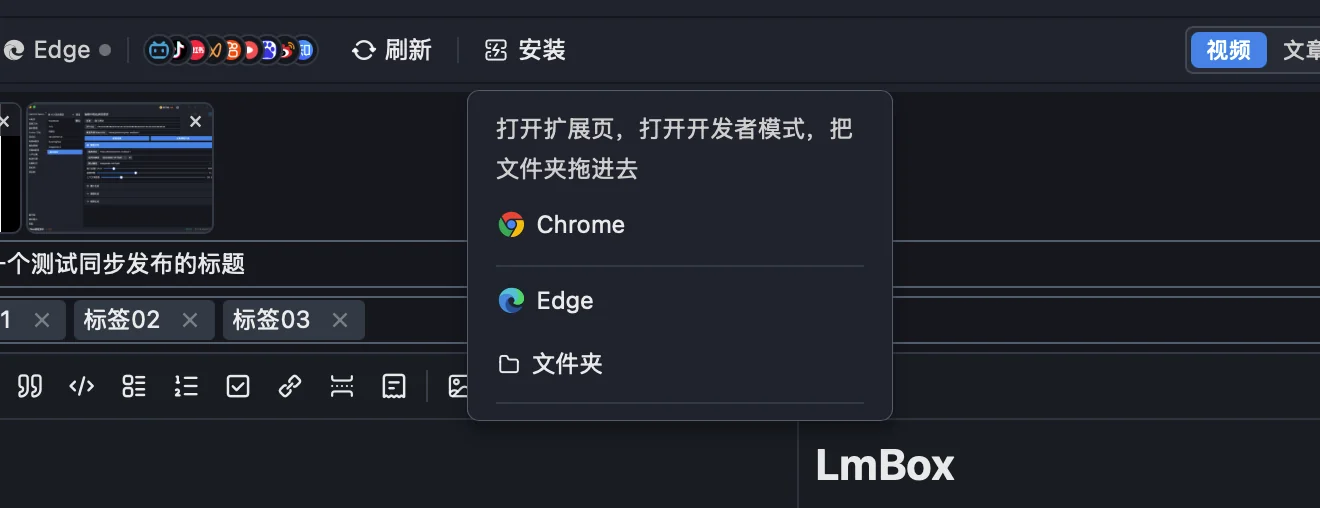
- Click Install (the menu hint is: open the extensions page, turn on developer mode, then drop in the folder)
- Choose Chrome or Edge: the app opens that browser’s extensions page (chrome://extensions or edge://extensions)
- From the same menu, click Folder: the app reveals the prepared unpacked extension directory on disk (the build output, not source
src/)
If you see that the extension folder is not ready yet, confirm the app installed cleanly; reopen this page and try Folder again.
3. Load it in the browser
On the extensions page you just opened:
- Turn on Developer mode
- Choose Load unpacked (Edge wording may differ slightly)
- Select the folder from step 2, or drag that folder onto the extensions page
- Confirm the LmBox Bridge extension appears and stays enabled
- Optionally pin it to the toolbar so the panel is easy to open
4. Confirm the handshake
Back in the desktop app:
- Check that the light next to Chrome / Edge is live
- If it is still off: keep the extension enabled, keep that browser open, then click Refresh on the toolbar
- After you change extension files, click Reload on the browser extensions page, then refresh in the app
Notes
- Load the folder the desktop app opens—do not drag repository
src/. - Keep the extension enabled; if you turn it off or remove it, the toolbar shows off and Publish all will fail.
- You can install in both Chrome and Edge; keep the browser you use for filling drafts connected.
Sign in
Each site must be signed in inside the extension before you can tick it in the app.
- Click the LmBox Bridge icon in the browser toolbar
- Open Accounts
- For each site, choose Sign in; the extension opens that site
- Finish sign-in in the web page
- When the account row shows signed in, the desktop toolbar also shows the bound site
Common sites include Bilibili, Douyin, Xiaohongshu, Weixin Channels, Kuaishou, Xigua, Baijiahao, Toutiao, Zhihu, and Weibo (the live list in the app wins). Types include video / article / post as offered under Type.
Write and queue
- Pick a type (video, article, post, and so on)
- Fill title and body; add a cover / video / images as needed
- Under Platforms, tick sites you have signed in to
- The right-hand drawer can create a draft, save a version, and switch versions
- Click Publish all: this only queues the draft for the extension—it does not open every site at once, and it does not click Publish for you
Then continue in the browser extension:
- The extension usually opens on the Jobs tab
- Click Sync on one site, or Sync all to open create pages in order and fill drafts
- After a site is filled, review the page yourself and click Publish there
If you see prompts to open the extension first or pick a platform, finish the handshake and sign-in, and tick at least one platform.
Jobs and history
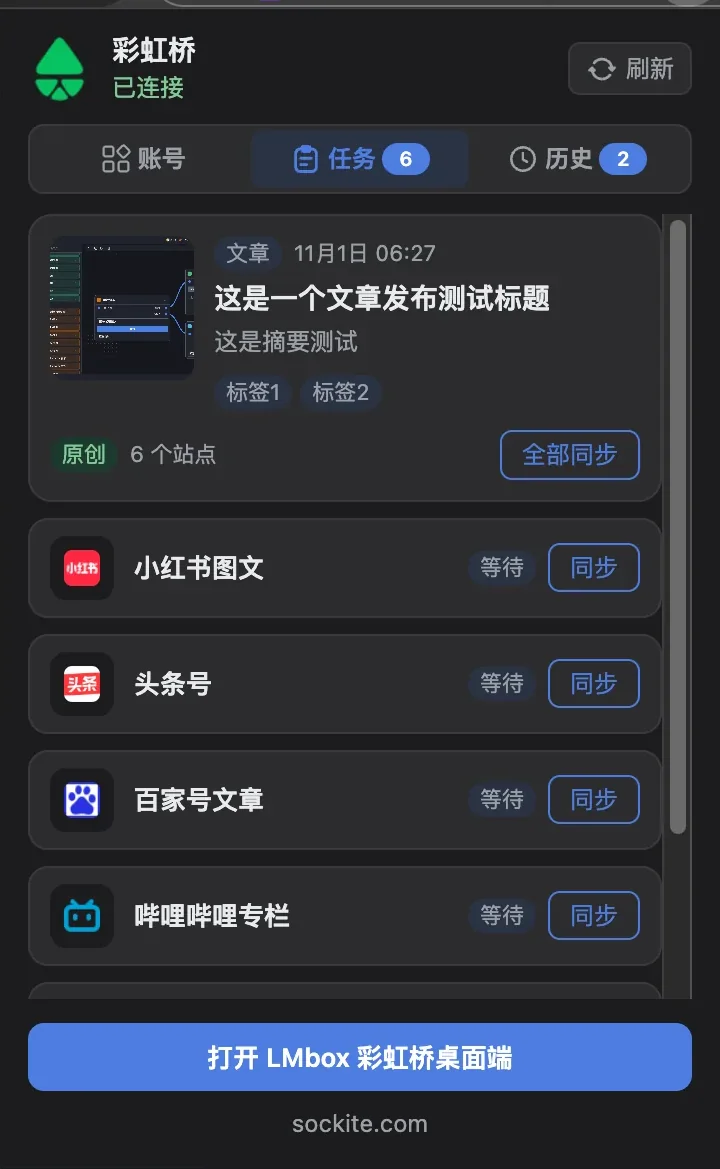
- Jobs: the current draft and each site’s fill progress; failed sites can Sync again.
- History: earlier drafts replaced by a newer job; send one back to Jobs to keep syncing, or delete it.
Refresh on the desktop toolbar pulls the latest handshake and job state from the extension.
Updates
3.3.0Added Sync publish: write a video, article, or post, then fill each site’s create page as a draft with the companion browser extension. It does not click Publish for you.3.3.0Load the companion extension in Chrome or Edge from toolbar Install, sign in on each site, then sync site by site. The extension shows jobs and history.