
Name Translate


"Name Translate" in LmBox Bridge lets you build your own source / translation pairs for the various interface names in DaVinci Resolve, Premiere and After Effects, then inject a language pack and switch the display inside the app. The sidebar icon is . For DaVinci Resolve Fusion nodes and comp text, use sidebar Fusion Translate.
What you will learn
- Open Name Translate from the sidebar and manage UI name dictionaries
- Dictionaries: use, create, import, export and merge-import
- Inject language pack and Capture names into a dictionary
- Add entries manually: one by one or in bulk, and copy the AI prompt
- Sync translations back to the interface
Guide
This is the Lab guide (main document) for the LmBox Bridge desktop app. Fusion comps are covered in Fusion Translate.
What it does
| Capability | Description |
|---|---|
| UI names | Write translations for English UI names in Fairlight, the effects library and more; after injecting a language pack you can switch between source and translation |
| Dictionaries | Several dictionaries grouped by app; use, create, import, export and merge import |
| Capture | Open or scroll the relevant UI; names go into the word pool and can be ticked and written into the dictionary |
| Manual add | Add one entry, or paste many as "source | translation"; Copy AI prompt lets you hand a UI screenshot to any agent and get the right format back |
Before you start
- Install and open the LmBox Bridge desktop app, and connect the matching editing extension in Settings
- Pick the target editing app in the sidebar ( / / ) and make sure the extension icon is lit
- If you use cloud / official assisted translation, sign in first and confirm you have quota
The screen
Open from the sidebar. The top bar starts with Inject language pack.
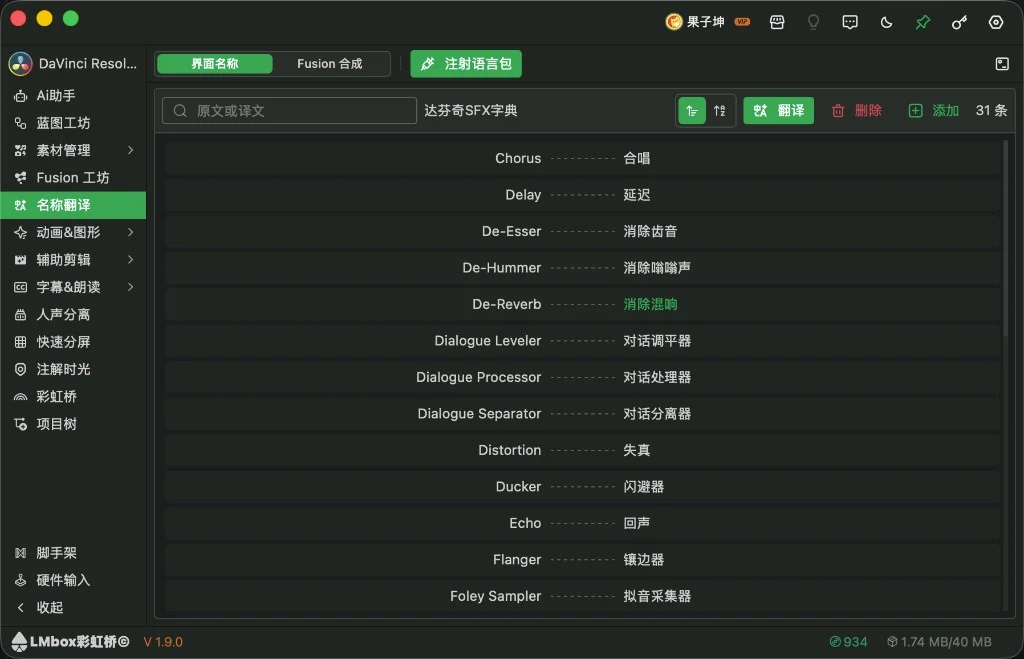
Figure: Name Translate: inject language pack and the dictionary entry list. The screenshot shows the Chinese interface.
Screen areas
| Area | What it does |
|---|---|
| in the sidebar | Opens this page |
| Inject a language pack into the current app; only then can the display sync | |
| After inject, the same slot turns warning-coloured; click to end the session and restore original names | |
| Capture | Arm it, then open or scroll the UI so names go into the word pool |
| Sync | Push the current dictionary translations to the UI that has the language pack |
| Dictionaries | Create / use / import / export dictionaries |
| Search and sort | Filter by source or translation; sort by added time or A–Z |
| Assist translate / Delete / Add | Fill empty rows, bulk edit or delete, add entries |
| Entry list | Two columns, source and translation; right-click to edit, copy, sync or delete |
Steps (UI names)
1. Dictionaries (use / import / export / merge)
Click in the top bar to open the Dictionaries drawer on the right. The list is grouped by After Effects / Premiere / DaVinci, each dictionary shows its entry count, and the one in use is highlighted (for example the DaVinci SFX dictionary).
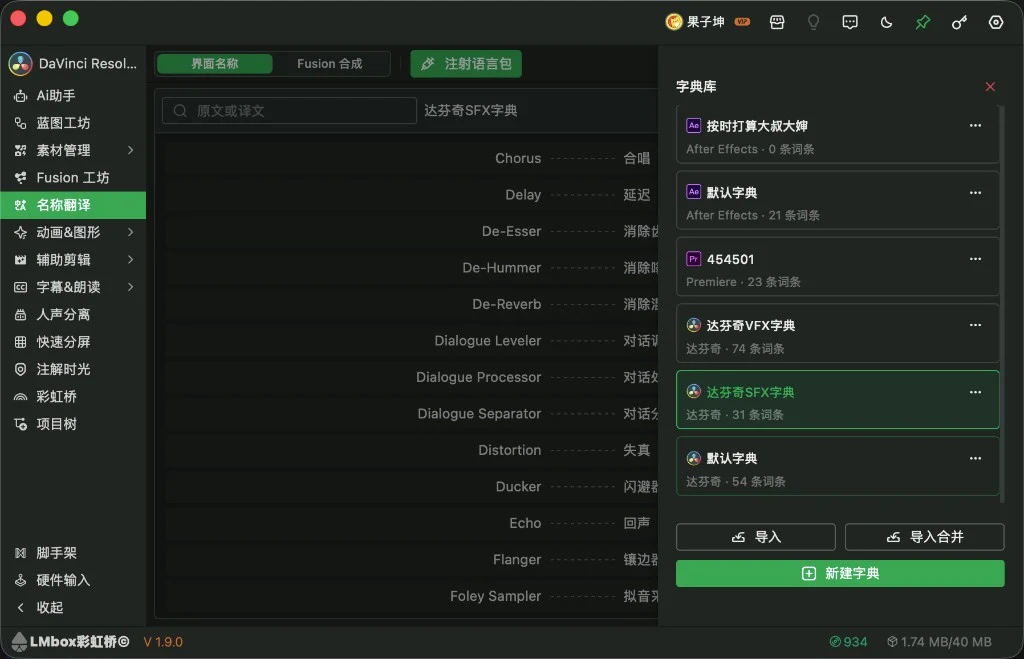
Figure: Dictionaries: manage dictionaries grouped by app; import, merge import and new are at the bottom. The screenshot shows the Chinese interface.
| Action | Description |
|---|---|
| Use | Click a dictionary and the main list switches to its entries |
| New dictionary | The green button at the bottom creates an empty dictionary for the current app |
| Import | Import a dictionary pack file as a new dictionary (and optionally use it) |
| Merge import | Merge the entries from a dictionary pack into the dictionary in use (same app only) |
| Export | In the ⋯ menu of a dictionary row; handy for backup or sharing |
| Rename / Delete | Also in the ⋯ menu |
Injecting a language pack loads all the UI dictionaries of the current app at once, so you do not have to switch one by one. To change app, pick the matching extension in the sidebar first, then use a dictionary under that app.
2. Inject / eject the language pack
Before capturing and syncing, inject a language pack first:
- Click
- Wait for the progress to finish (a message says it was injected)
After a successful injection, that button becomes warning-coloured Eject language pack, and Capture / Sync icons appear. Click Eject language pack to end the session and restore original names in the editing app. If the editing app is closed or the connection drops, inject again.
3. Capture (collect source names from the UI)
Good for collecting, in bulk, the English names already showing in panels such as the effects library or Fairlight, then writing them into the current dictionary.
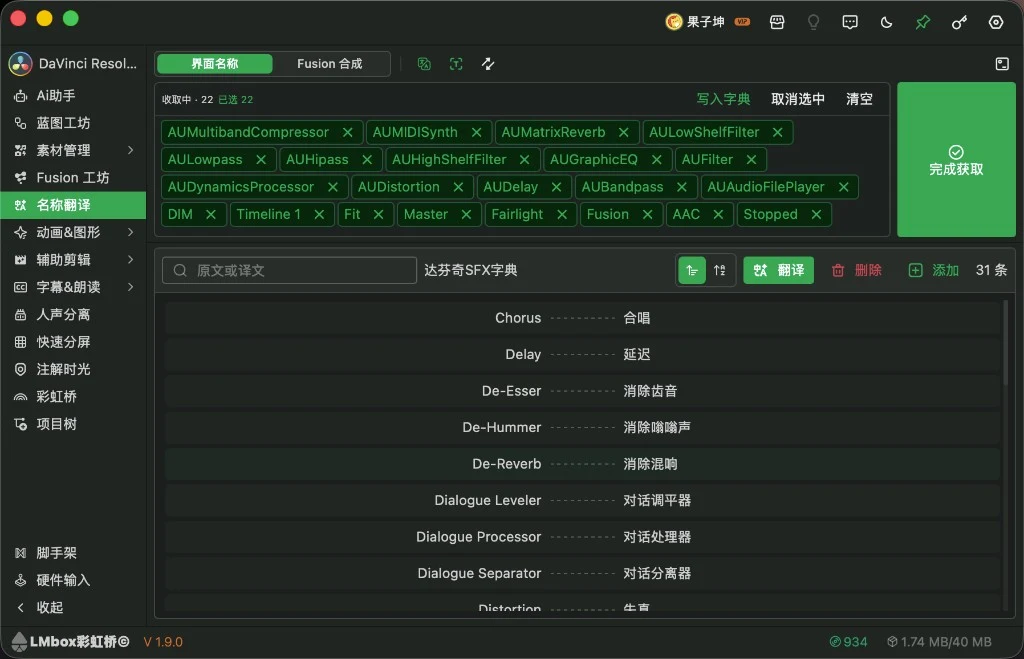
Figure: Capture in progress: the word pool shows collected names, which you can tick and write into the dictionary or finish with "Done". The screenshot shows the Chinese interface.
Steps:
- Make sure a dictionary is in use (for example the DaVinci SFX dictionary)
- Click Scan names in the top bar to enter capturing (the status bar shows "Capturing · n")
- In the editing app open or scroll the target panel (effects library, mixer and so on); names that appear go into the word pool above one by one (green tags)
- Tidy up in the word pool:
- Click a tag to tick / untick it; use Deselect and Clear
- Remove unwanted tags with the close button on the tag
- Write the selected items into the dictionary in one of two ways:
- Add to dictionary: writes the current selection right away and you can keep capturing
- Done: ends this scan; if something is ticked it writes the selection, otherwise it writes everything in the pool
Source names already in the dictionary are not written twice. After capturing you can use Assist translate below to fill empty translations in bulk, or Add in the next section to add entries by hand.
4. Add entries manually (with the AI prompt)
Click Add in the list toolbar to open the Add entry dialog.
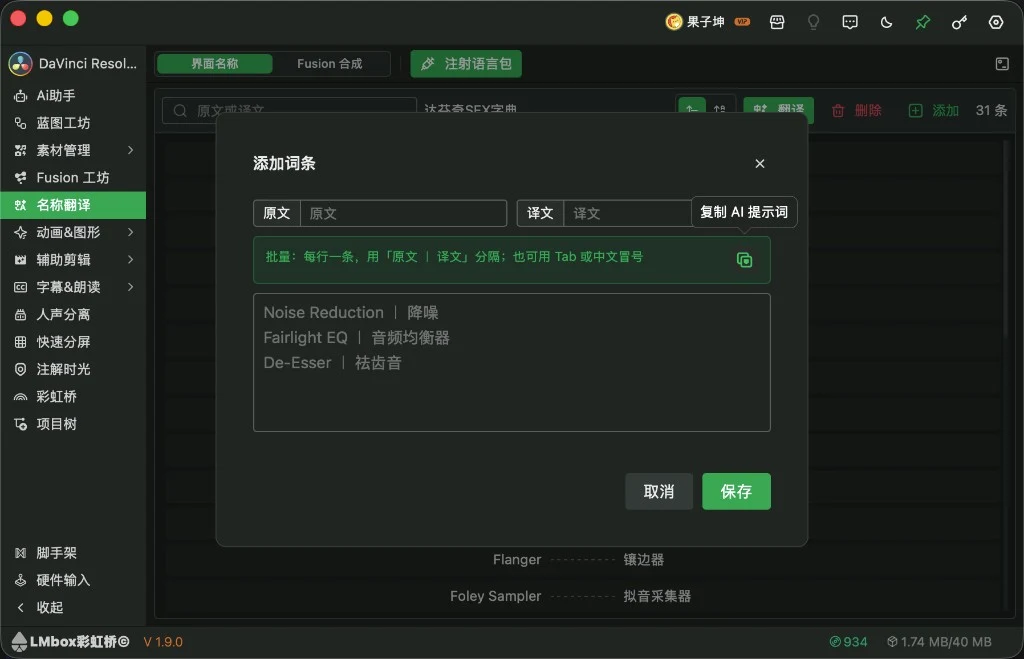
Figure: Add entry: fill in one entry, or paste many as "source | translation"; you can copy the AI prompt. The screenshot shows the Chinese interface.
Format:
| Way | Description |
|---|---|
| One entry | Fill in Source and Translation at the top, then save |
| Bulk | One entry per line in the box below, separated by the full-width vertical bar | (Tab or the full-width colon : also work) |
Example (translation into a target language of your choice; the example uses Spanish):
Noise Reduction | Reducción de ruido
Fairlight EQ | Ecualizador de Fairlight
De-Esser | Eliminador de sibilancias
Use an agent to produce the format in bulk:
- Click Copy AI prompt (the content is shown below, the same as in the app)
- Paste the prompt into any chat agent and attach a screenshot of the editing app's interface or a list of English names
- The agent returns several lines of "English | translation" as instructed
- Paste the whole result into the bulk box and click Save
The prompt as copied in the app (the English app build targets Simplified Chinese; if you want another target language, change that one phrase before you paste it):
Translate the editing-app UI English names below into Simplified Chinese. Output only the result, no explanations.
Format: one pair per line as English | Chinese, using a full-width vertical bar | with optional spaces. No numbering, quotes, or Markdown.
Example:
Noise Reduction | Denoise
Fairlight EQ | Fairlight EQ

List or image to translate:
You do not need to depend on the "Assist translate" button on this page; the prompt fixes the format, so any chat agent works.
5. Show translations
- When needed, click Sync to UI
- Or use the language icon in the top bar to switch between Show original / Show translated
FAQ
Q: Where do I translate Fusion nodes / comp text?
A: Open Fusion Translate from the sidebar (DaVinci Resolve only). Name Translate is for host UI names only.
Q: Nothing changed in the interface after injecting a language pack?
A: Make sure the extension is connected, a dictionary is in use and has translations, then click Sync; inject again if needed. After you close the editing app or click Eject language pack, inject again.
Q: Capture stays empty?
A: Arm Capture first, then open or scroll the relevant panel; for both Adobe apps and DaVinci Resolve the names only enter the pool once they actually show in the interface. DaVinci Resolve dropdown / combo options are not captured yet (the popup is mostly Qt-painted; the current hook does not cover it)—add those rows by hand or with the AI prompt.
Q: Can I merge a dictionary from another app?
A: No. Merge import only accepts dictionary packs for the same app as the dictionary in use; across apps, import them as new dictionaries and use each separately.
Q: What is the difference between Import and Merge import?
A: Import adds a new dictionary; Merge import merges entries into the current one, which suits filling gaps or merging entries shared by a teammate.
Q: How is this different from "Translate & replace"?
A: Translate & replace is more about replacing text inside footage / projects; this page focuses on host interface names. Fusion comps: Fusion Translate.
Further reading
- Lab features overview
- Fusion Translate: DaVinci Resolve Fusion nodes and comp text
- Fusion Presets: translate and manage a single preset
- Fusion Lab
- LmBox Bridge Core (host connection)
- LmBox Bridge desktop install
- Release notes
Video tutorial
Release notes
3.2.xAfter inject, the top bar shows warning-coloured Eject language pack to end the session.3.2.xDaVinci Resolve dropdown options cannot be captured yet (known limit).2.4.1Translation remembers the route and language you chose last time and reuses them on the next open.1.9.1Dictionaries support "Merge import": entries from a dictionary pack can be merged into the dictionary in use (same app only).1.9.1Injecting a language pack loads all the UI dictionaries of the current app at once, so you no longer switch one by one.1.9.0Added "Name Translate": build your own pairs for DaVinci Resolve, Premiere and After Effects interface names and switch the display.3.2.xName Translate keeps UI names only; Fusion comps use the separate sidebar Fusion Translate entry.1.8.0Rebuilt the top bar of the former Fusion Translate (get data, translate, settings and tool pop-ups); supports dropping in a.setting, switching between the translation list and script preview, and filtering out and replacing inspector embedded images.1.2.1Fixed copying an expression still copying the untranslated source; you can choose the template type before importing so it is written back to DaVinci Resolve correctly.0.2.1When translating you can tick "Text" or "Controls"; both are listed and translated by default.